


What Are Negative Prompts?
On this page
Negative Prompts help reduce unwanted elements or details in your generated Images.
You can use them to tell the Generator what you do not want to appear, such as certain background elements, physical features, objects, or visual qualities.
Note: Negative prompts lessen likelihood that an element appears in your creation and does not completely remove it. As Generative AI technology improves, the necessity of this feature will decrease. Newer generative models on our site do not offer negative prompts due to improved language processing capabilities.
How Negative Prompts Work
Your Custom Prompt describes what you want to generate, while the Negative Prompt describes what you want the Generator to avoid.
For best results, list the unwanted elements clearly and keep the Negative Prompt focused on the specific details you want to remove.
How to Use Negative Prompts
Open the Create Page
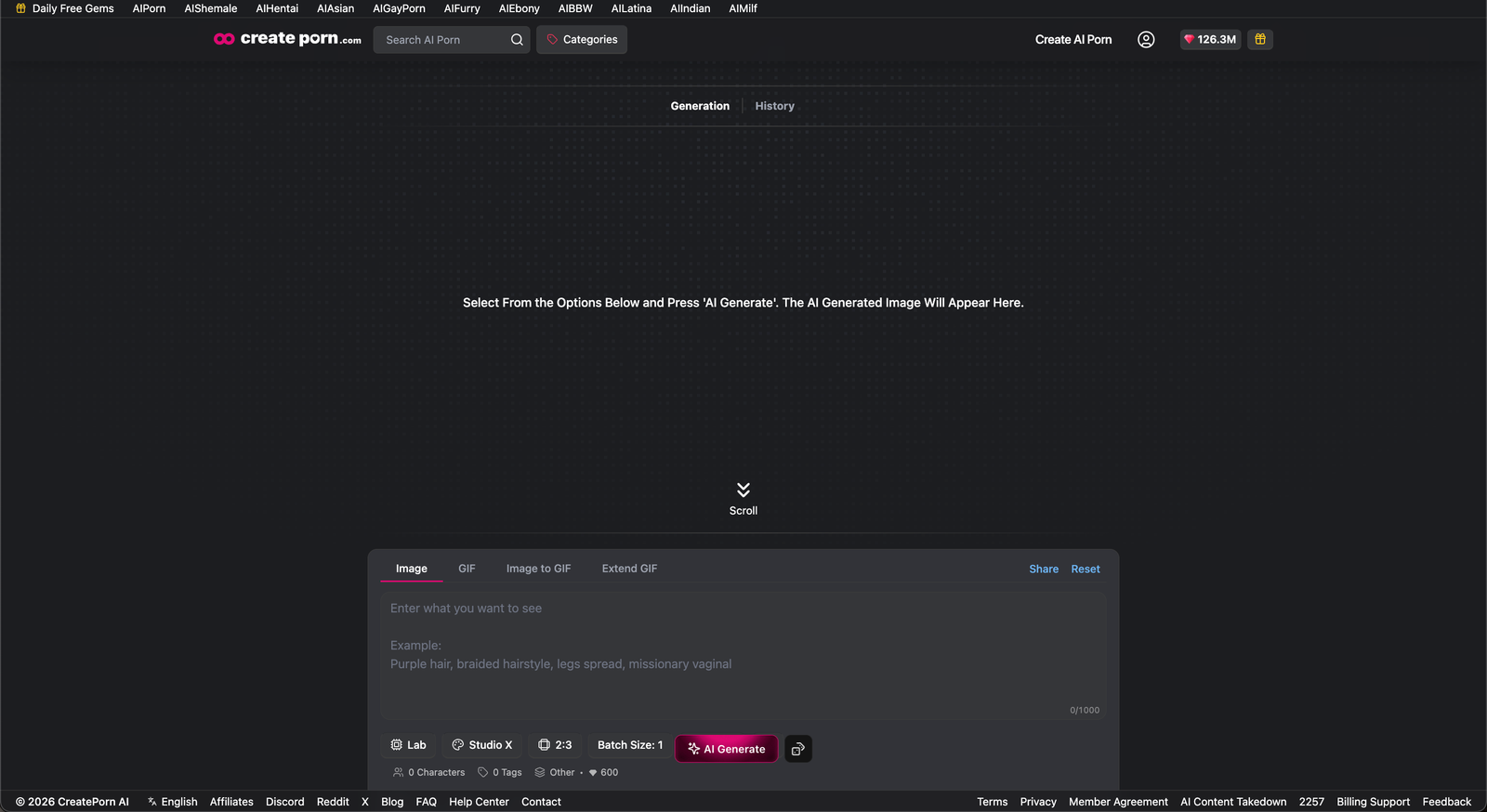
Open the Create page and select the Style you want to use.
Enter a Custom Prompt describing the Image you want to create.
Include the Character, setting, clothing, pose, or other details you want to appear.
Open the Advanced Settings Menu
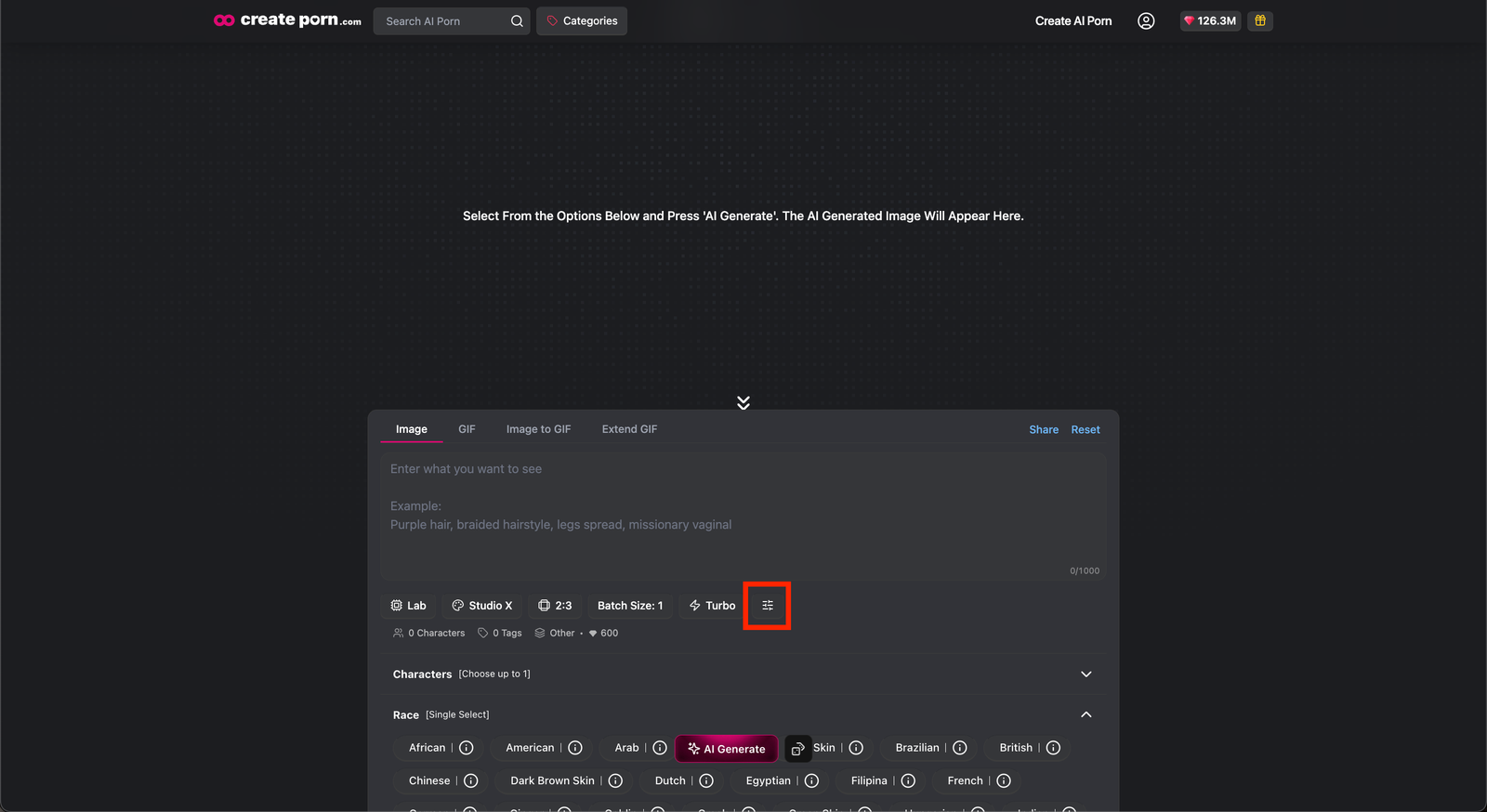
Open the Advanced Settings menu to access Negative Prompts
Add a Negative Prompt
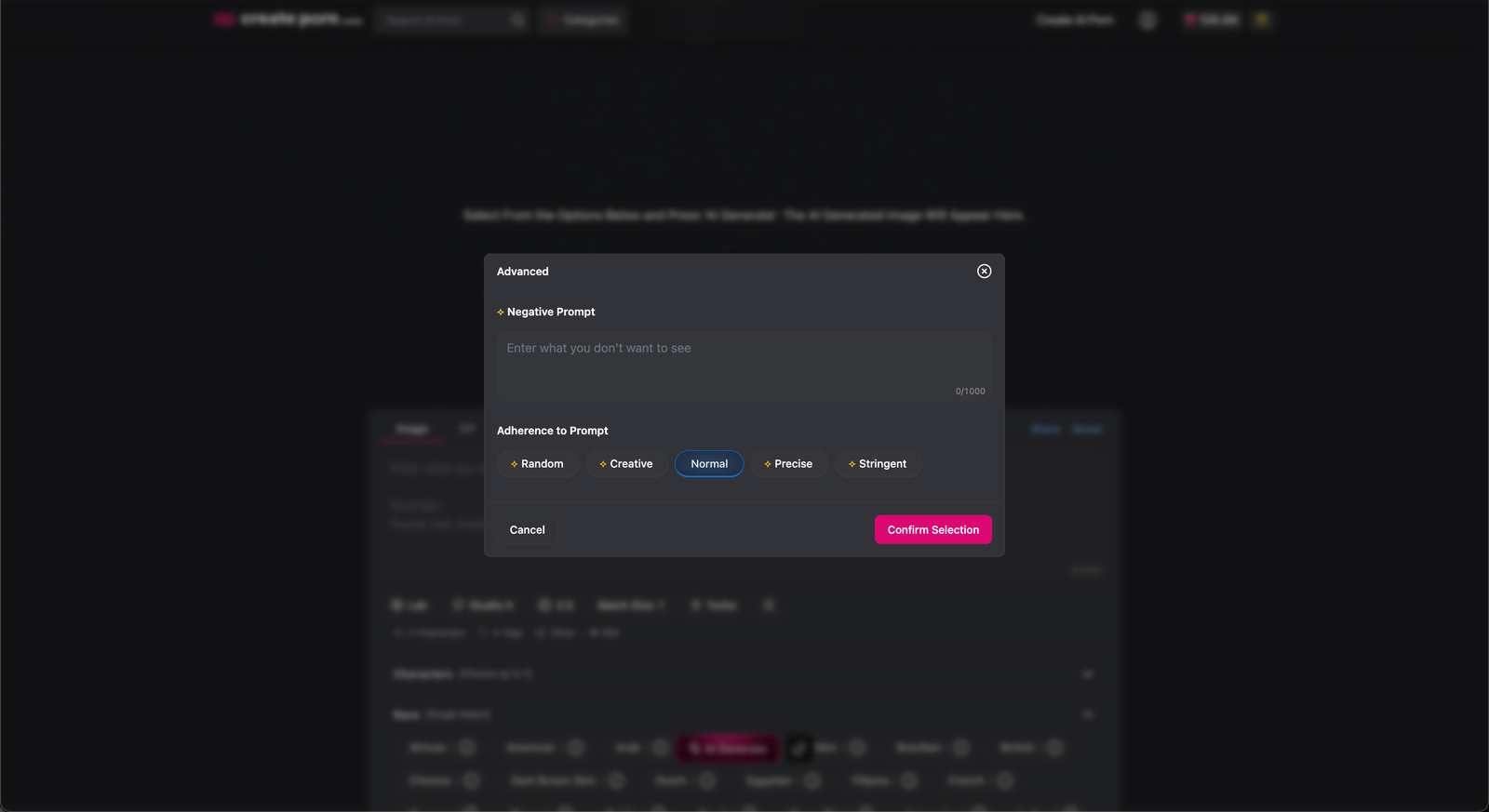
Open the Advanced section and find the Negative Prompt field.
Enter the features or elements you do not want to appear in the generated Image.
Generate Your Image
Review your Custom Prompt, Negative Prompt, Tags, and generation settings.
Click the AI Generate to generate the Image.
Negative Prompt Example
You want to create a Character with realistic proportions, but the results contain exaggerated physical features.
Custom Prompt:
A realistic woman standing in a modern apartment, natural body proportions, casual clothing, soft indoor lighting
Negative Prompt:
Unrealistic body proportions, exaggerated breasts, oversized hips
The Negative Prompt tells the Generator to avoid these unwanted features.
Tips
- Use short, clear descriptions of the elements you want to avoid.
- Separate multiple unwanted details with commas.
- Focus on visual features, objects, or qualities that appear repeatedly in your results.
- Avoid adding details that conflict with your Custom Prompt.
- Review your results and adjust the Negative Prompt as needed.
- Remove unnecessary terms if the Negative Prompt begins affecting parts of the Image you want to keep.
Need Help?
If an unwanted element continues to appear, simplify your Custom Prompt and make the Negative Prompt more specific.
You can also try generating again with fewer conflicting details.
If the issue continues, contact Support and include:
- The Custom Prompt used
- The Negative Prompt used
- The selected Style
- A link to the generated Image
Providing these details helps Support review the generation and suggest adjustments.